Appearance
Choosing your own sort order
You can use drag and drop to choose the order of your properties, customized field sections, fields, and field options. Look for the up and down arrows or the two horizontal lines: these are the sorting controls.
Reorder properties
In the Residenda admin console, open Properties.
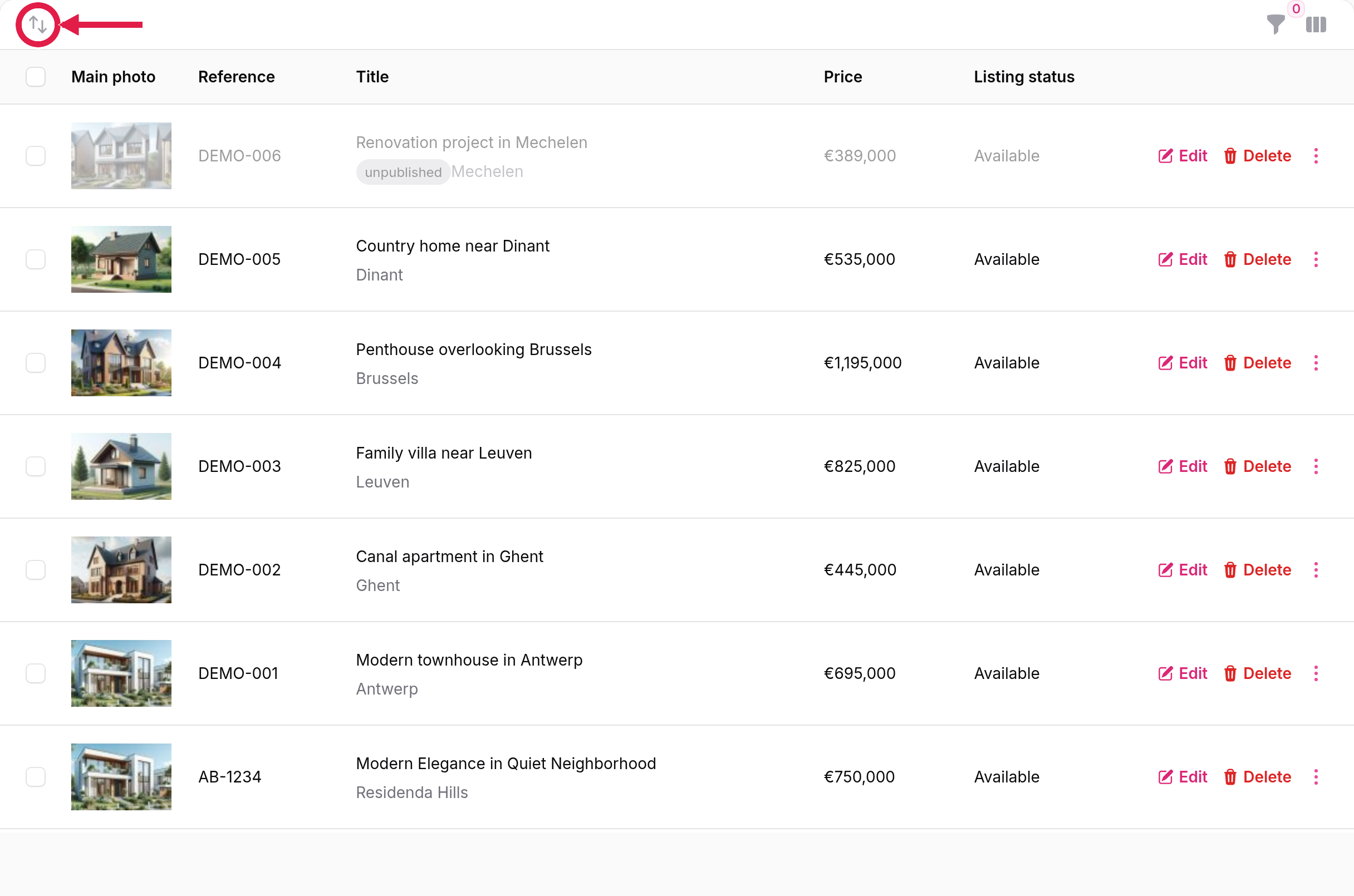
Click the up and down arrows above the first column of the table to turn on sorting mode.
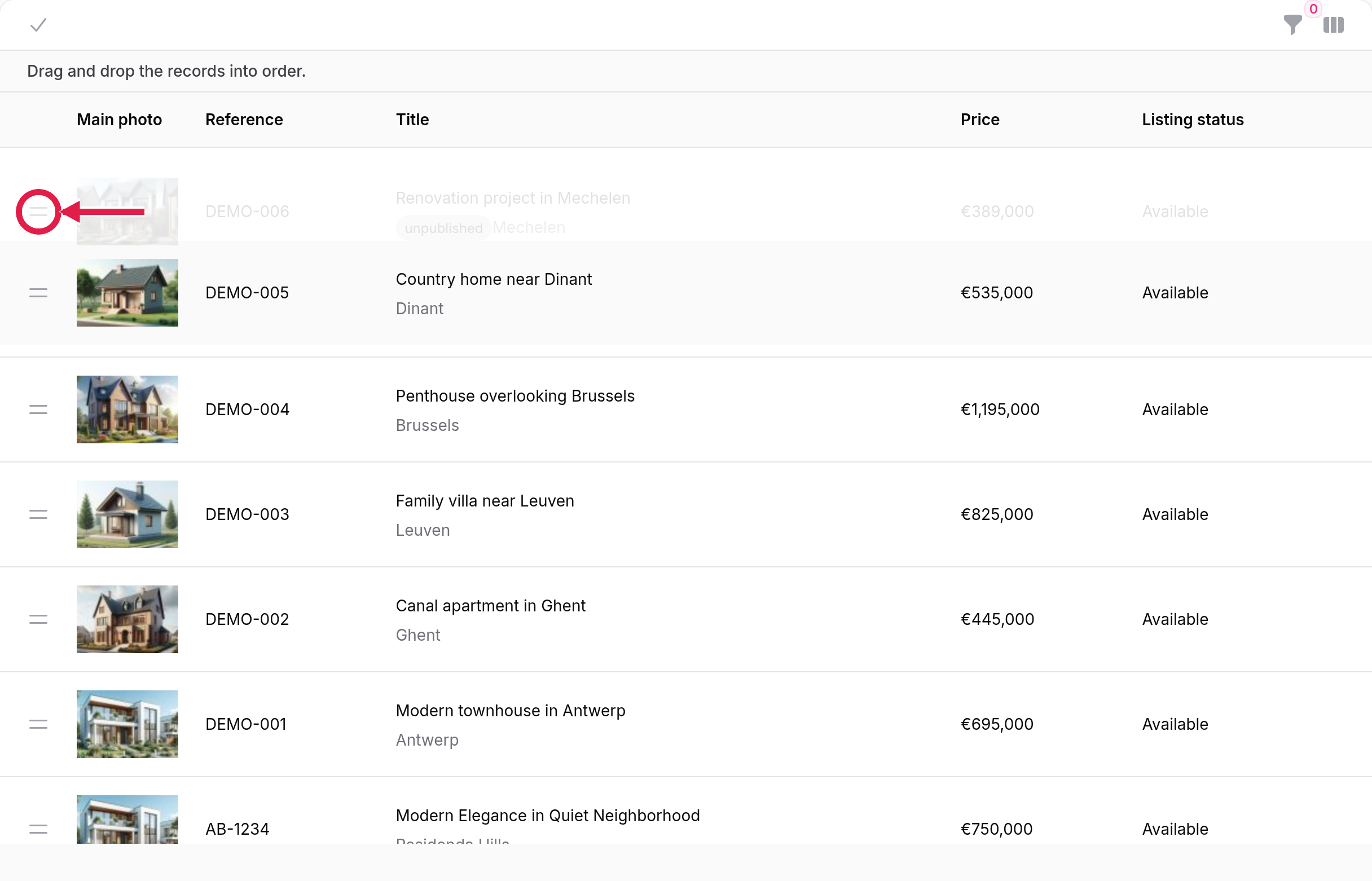
A handle with two horizontal lines now appears at the start of every row. Click and hold a handle, drag the property to its new position, and release it.
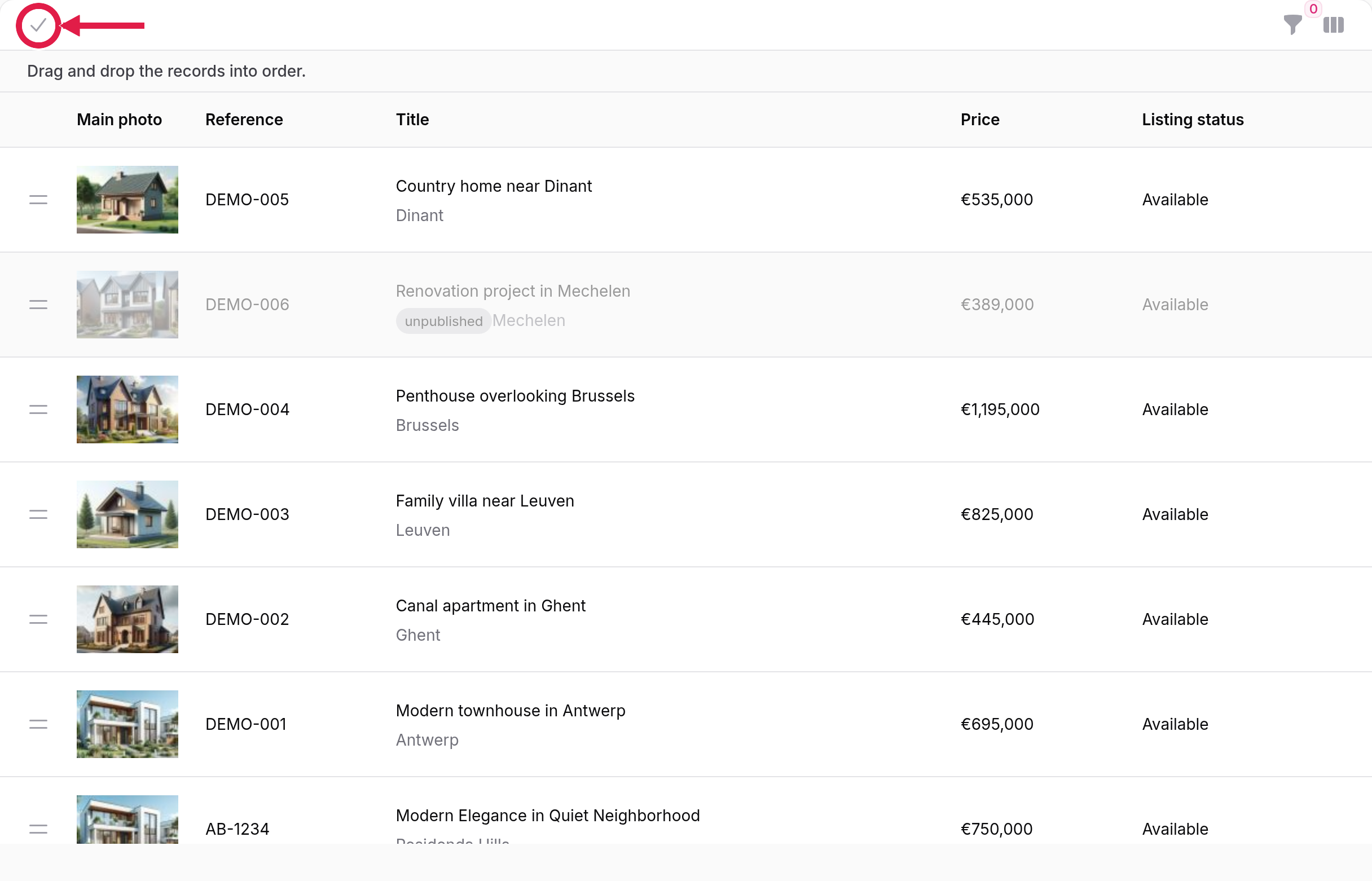
Repeat this for any other properties you want to move. Each change is saved when you release the row.
Click the checkmark above the first column to finish and return to the normal table.
How this affects your website
The order you choose in the admin console is also used on your public website. If visitors can select a sorting option themselves, your chosen order is shown under Newest-Oldest.
Reorder sections and fields
Open Customize Fields. Unlike the Properties table, you do not need to turn on sorting mode here: the handles are always visible.
To move an entire section, drag the two horizontal lines at the far left of the section heading.
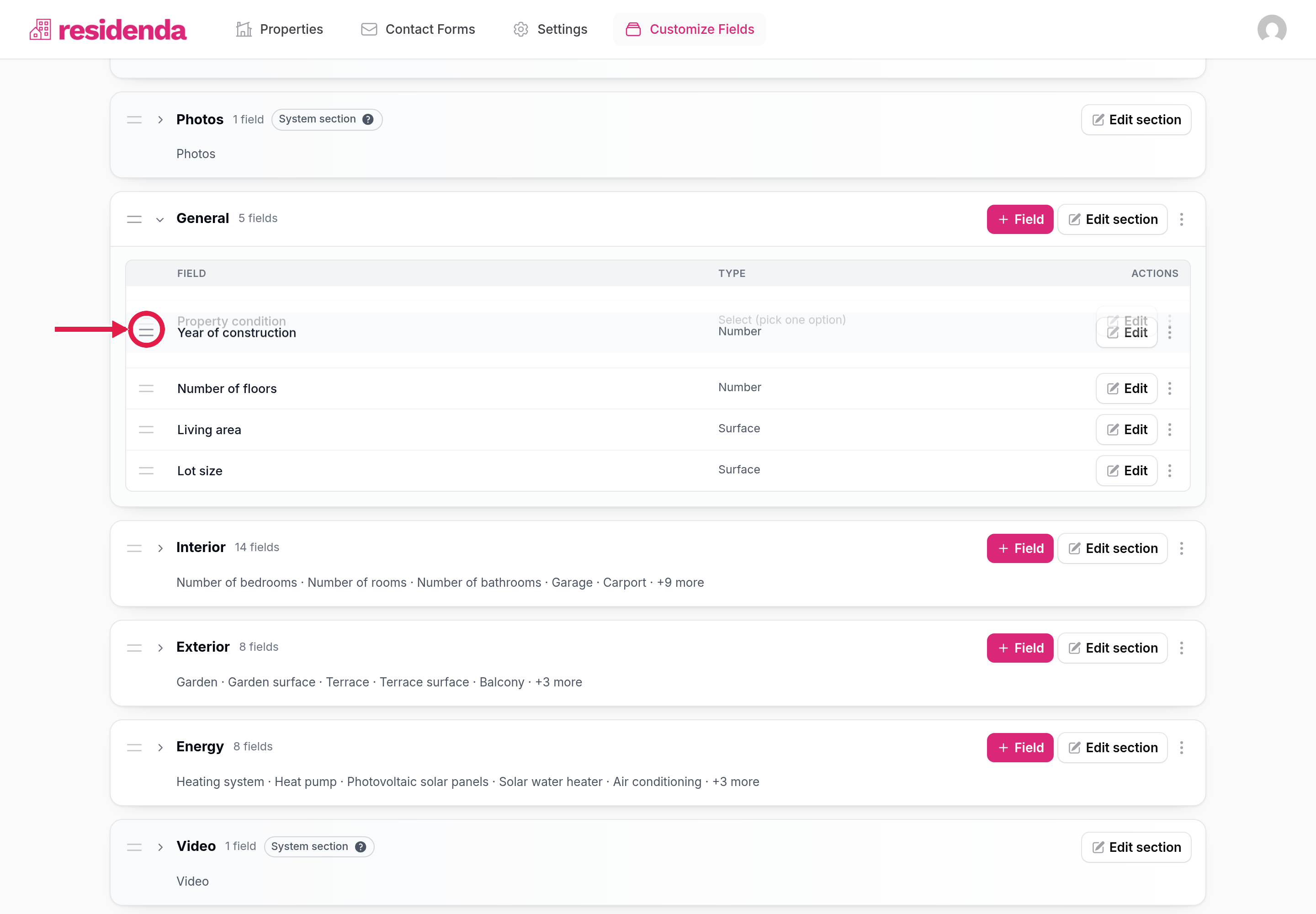
To move a field within a section, first expand the section. Then drag the handle at the start of the field row.
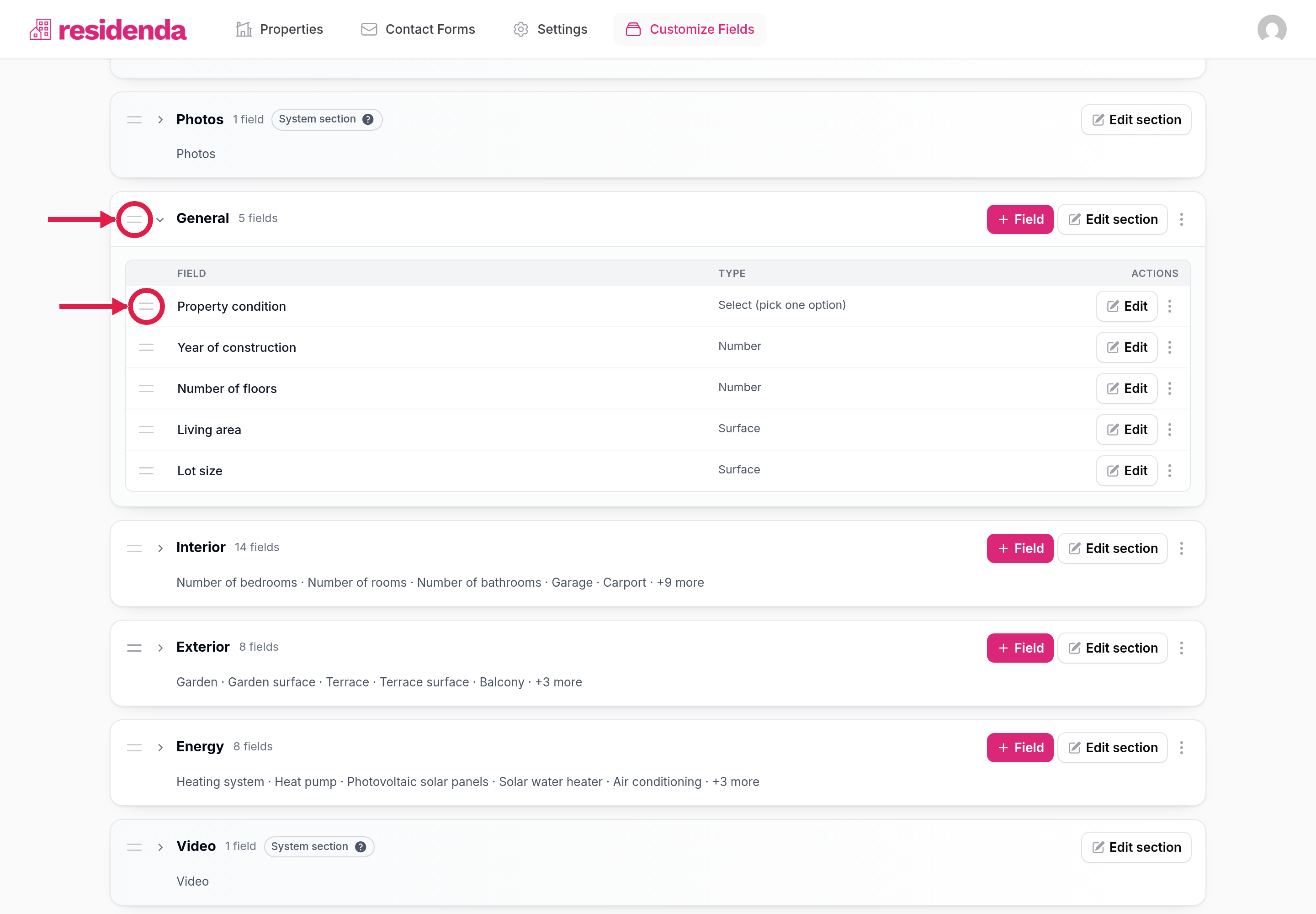
Release the section or field in its new position. The new order is saved automatically; there is no separate save button on this screen.
TIP
Sections can be moved relative to other sections. Fields can be moved within their current section.
Reorder the options of a field
Options can be reordered for fields such as Select (pick one option) and Multiselect (pick multiple options).
In Customize Fields, expand the relevant section and click Edit next to the field.
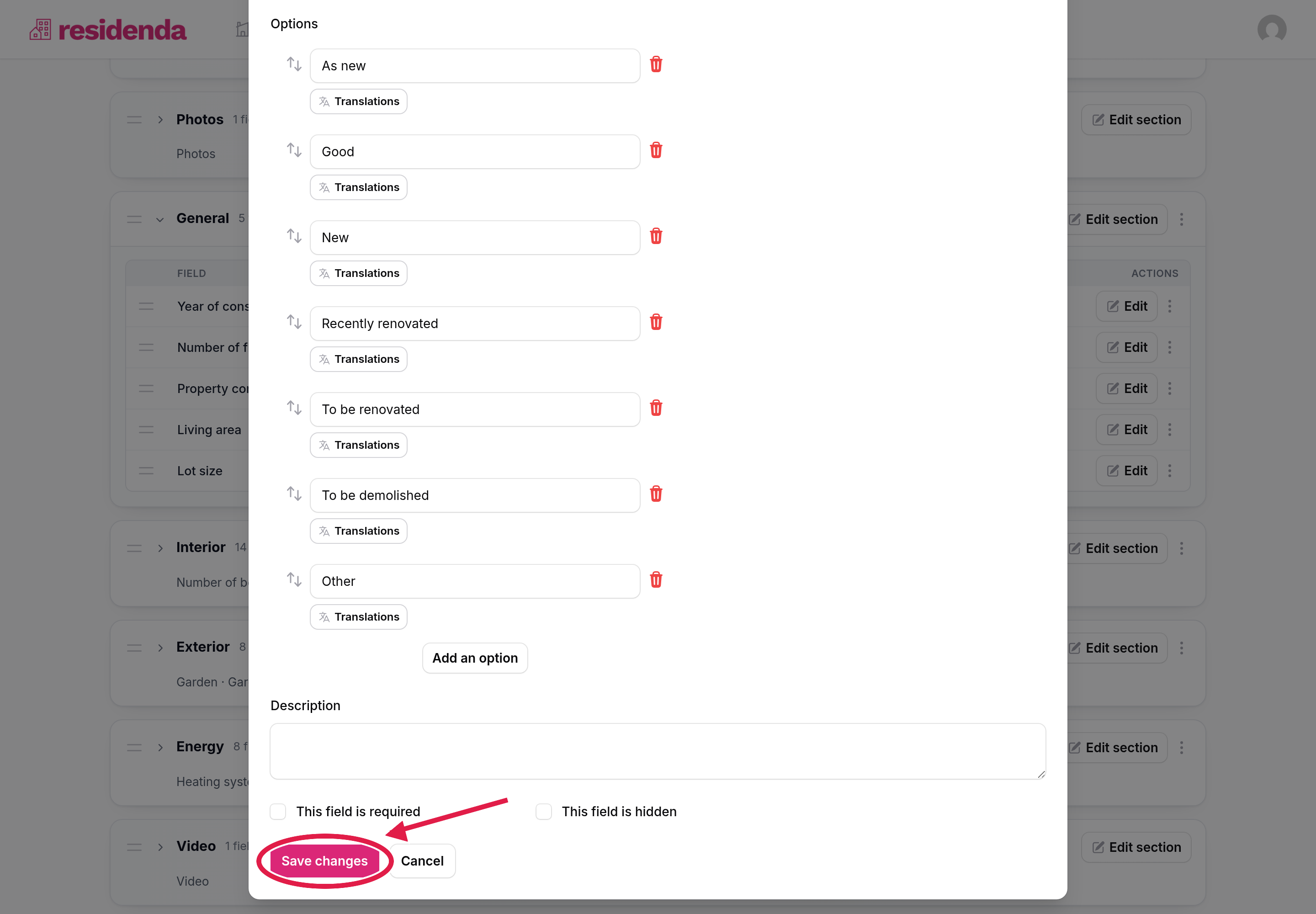
Under Options, find the up and down arrow handle at the start of each option.
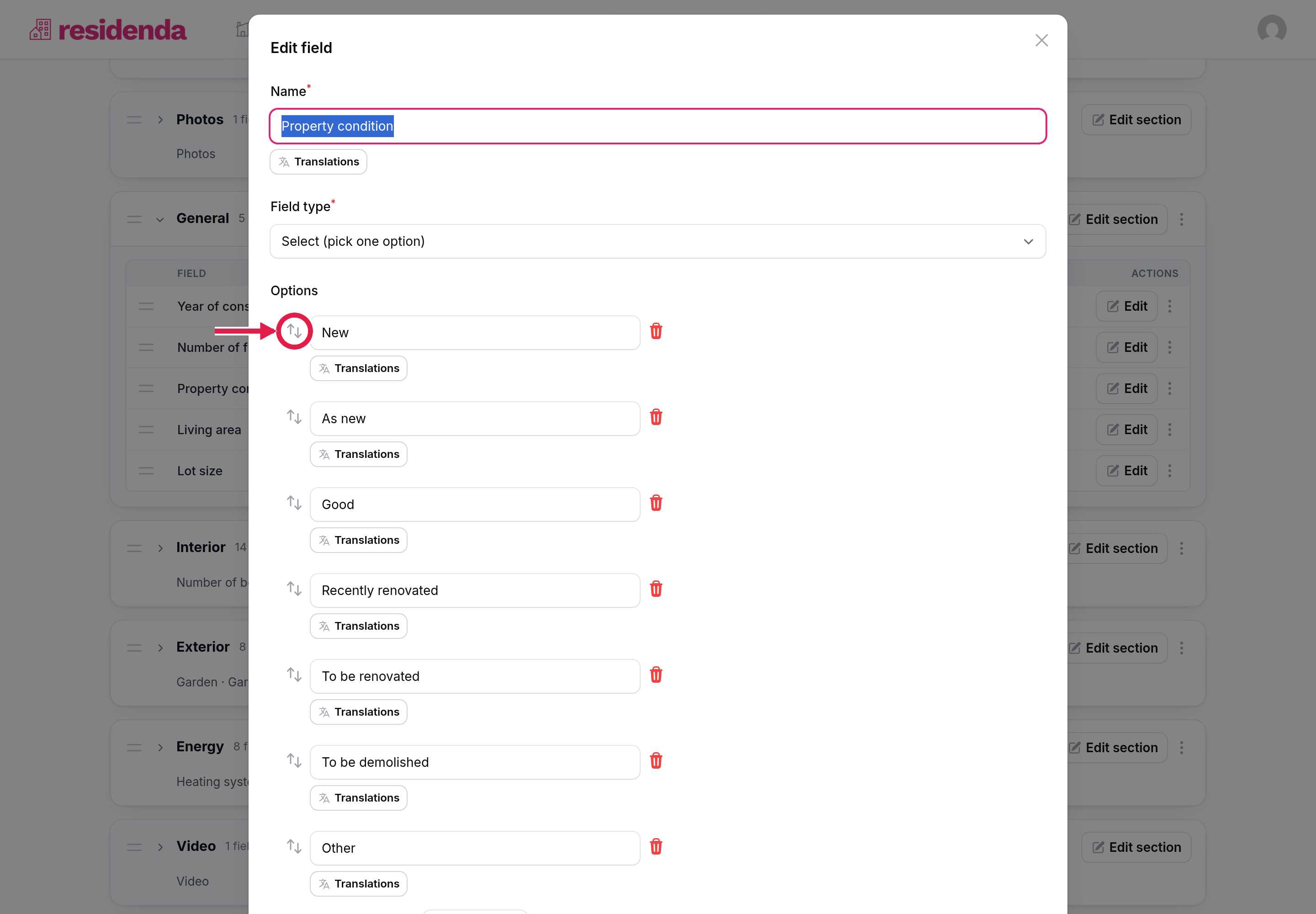
Click and hold a handle, drag the option to its new position, and release it. Any translations belonging to that option move with it.
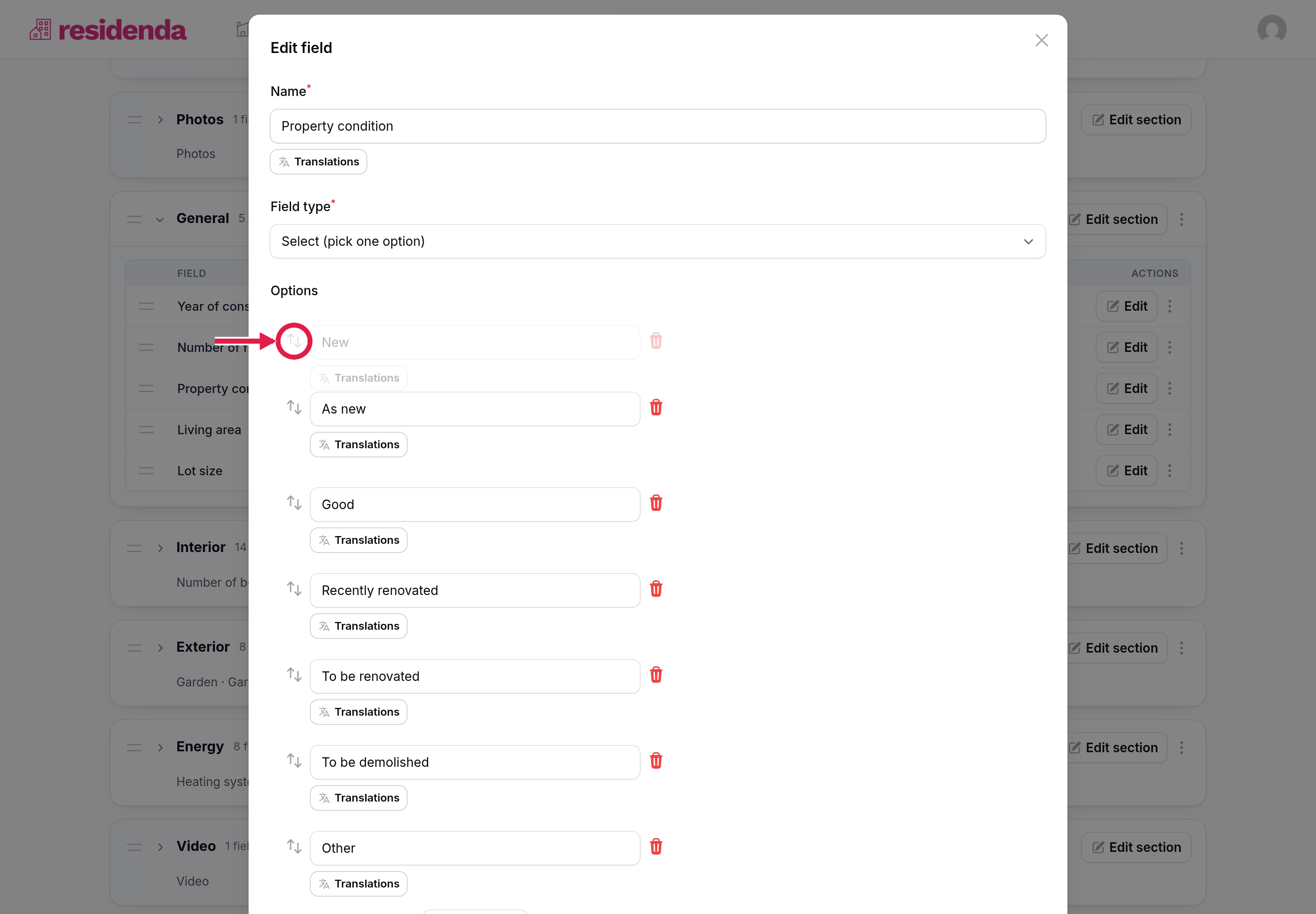
Click Save changes at the bottom of the window to confirm the new option order.