
Appearance
Creating a multilingual property website
A multilingual property website has two connected parts:
- Wix provides the language versions of your website and the language menu visitors use to switch between them.
- Residenda stores the languages and translated property content displayed inside the Residenda widgets.
You need to configure both parts. Adding a language in Wix does not automatically add or translate that language in Residenda, and adding it in Residenda does not translate the rest of your Wix website.
Before you start
Decide which language will be your main language and which secondary languages you want to offer. Use the same main language and the same set of languages in Wix and Residenda.
Choose your Wix main language carefully
Wix currently does not let you simply replace a site's main language after Wix Multilingual has been set up. See Wix's current guidance about adding and setting up Wix Multilingual.
1. Set up your languages in Wix
- Add Wix Multilingual to your site from the Wix App Market, your site's dashboard, or the Wix Editor.
- Select your site's main language.
- Add every secondary language you want to support.
- Add or configure the Language Menu so visitors can switch languages.
- Keep unfinished language versions hidden while you prepare them. Make each language visible and publish your site when it is ready.
Wix shows visible languages in the Language Menu. You can display that menu horizontally or as a dropdown and choose whether it shows language names, abbreviations, or flags. Refer to Wix's official instructions for managing languages and setting up the Language Menu, as the controls differ slightly between the Wix Editor and Studio Editor.
Wix's own automatic translation only applies to content managed by Wix. Property content stored in Residenda must be translated in the Residenda admin console.
2. Add the same languages in Residenda
- Open the Residenda admin console.
- Go to Settings → Main settings.
- In the Localization section, add the same languages you enabled in Wix.
- Drag your main website language to the first position. The first language in Residenda is the default language and should match the main language in Wix.
- Click Save changes.
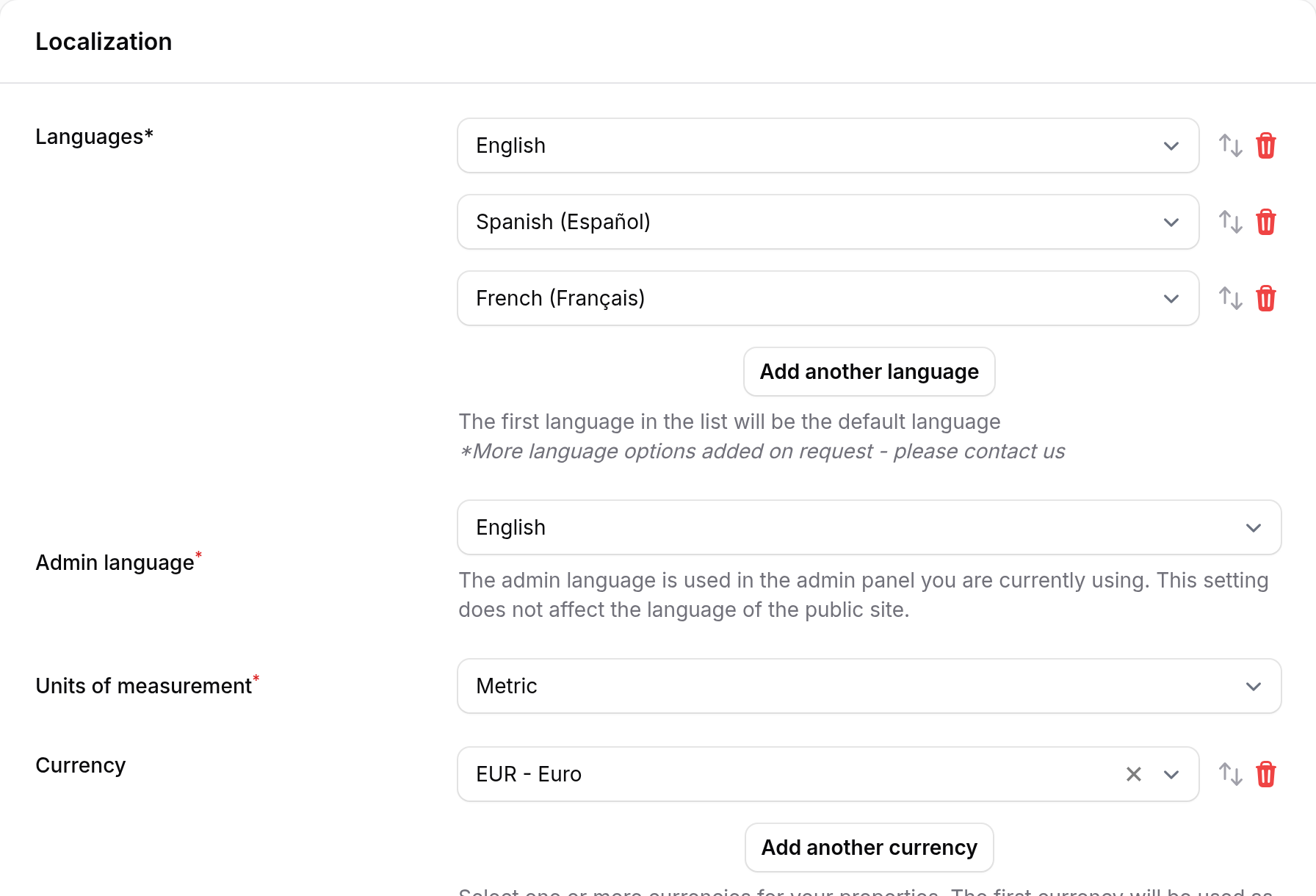
The Admin language setting below the language list only changes the language of the admin console. It does not change the languages available to visitors on your website.
At this point, the multilingual infrastructure is ready. Your existing content is not translated automatically.
3. Translate labels and custom fields
Most built-in Residenda field labels already include translations. Review anything you created yourself under Customize Fields, including:
- section names and descriptions;
- custom field labels;
- options for selection fields;
- price suffixes, if you use them.
These labels have a Translations button that reveals an input for each active language.
Custom text and textarea fields can also store a different property value for each language. Enable the field's Translatable option when you create or edit it. Other field types, such as prices, numbers, checkboxes, and images, use one language-independent value.
4. Translate a property manually
- Open a property in the Residenda admin console.
- Click Show all translations at the top of the form. By default, Residenda only shows the main-language inputs.
- Enter or review the value for each language.
- Check all relevant tabs. Translatable content can include the title, intro, description, ribbon, active call-to-action text, SEO title and SEO description, and custom translatable text fields.
- Click Save changes.
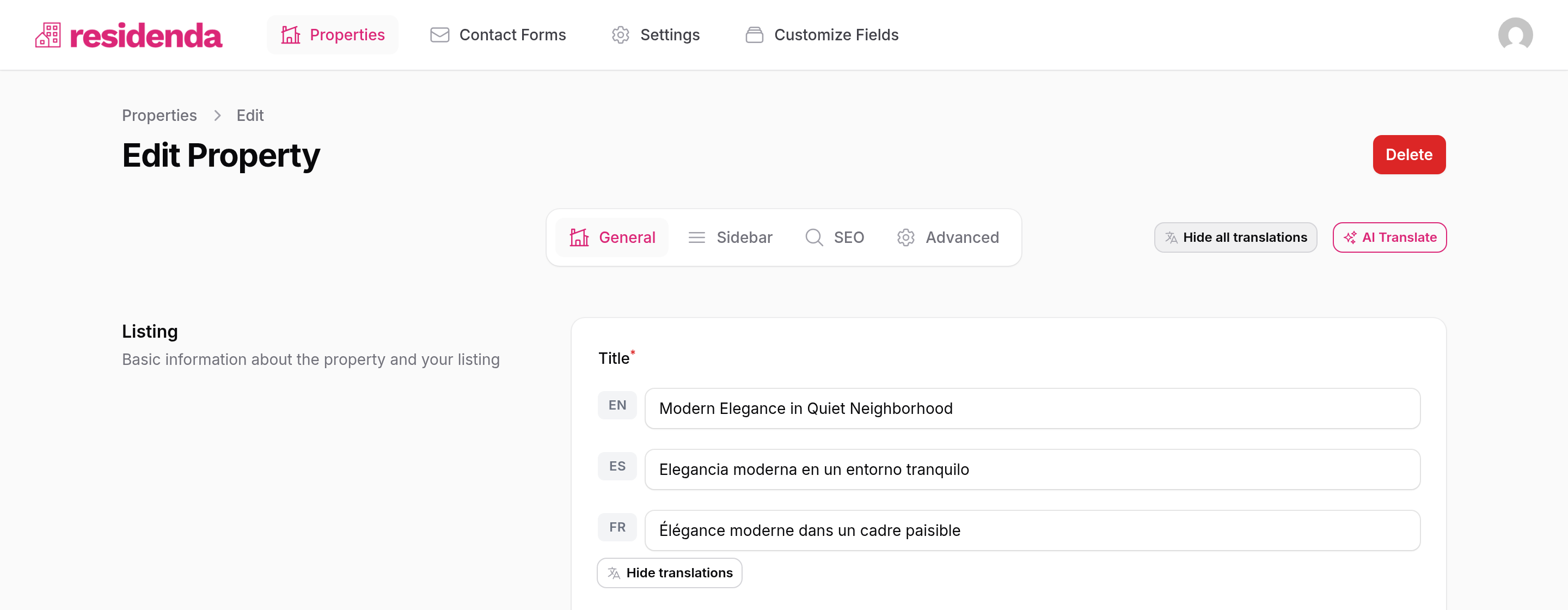
Use this method when you need maximum control over wording, local terminology, or search-engine content in each language.
5. Translate a property with AI
You can also translate the translatable text of an entire property in one action:
- Open the property and click AI Translate at the top of the form.
- Select the language that contains your completed source text.
- Select one or more target languages.
- Leave Overwrite existing translations unchecked to preserve target fields that already contain text. Enable it only when you intentionally want to replace existing translations.
- Review the credit estimate and click AI Translate.
- Review the generated text in the property form, make any necessary changes, and click Save changes.
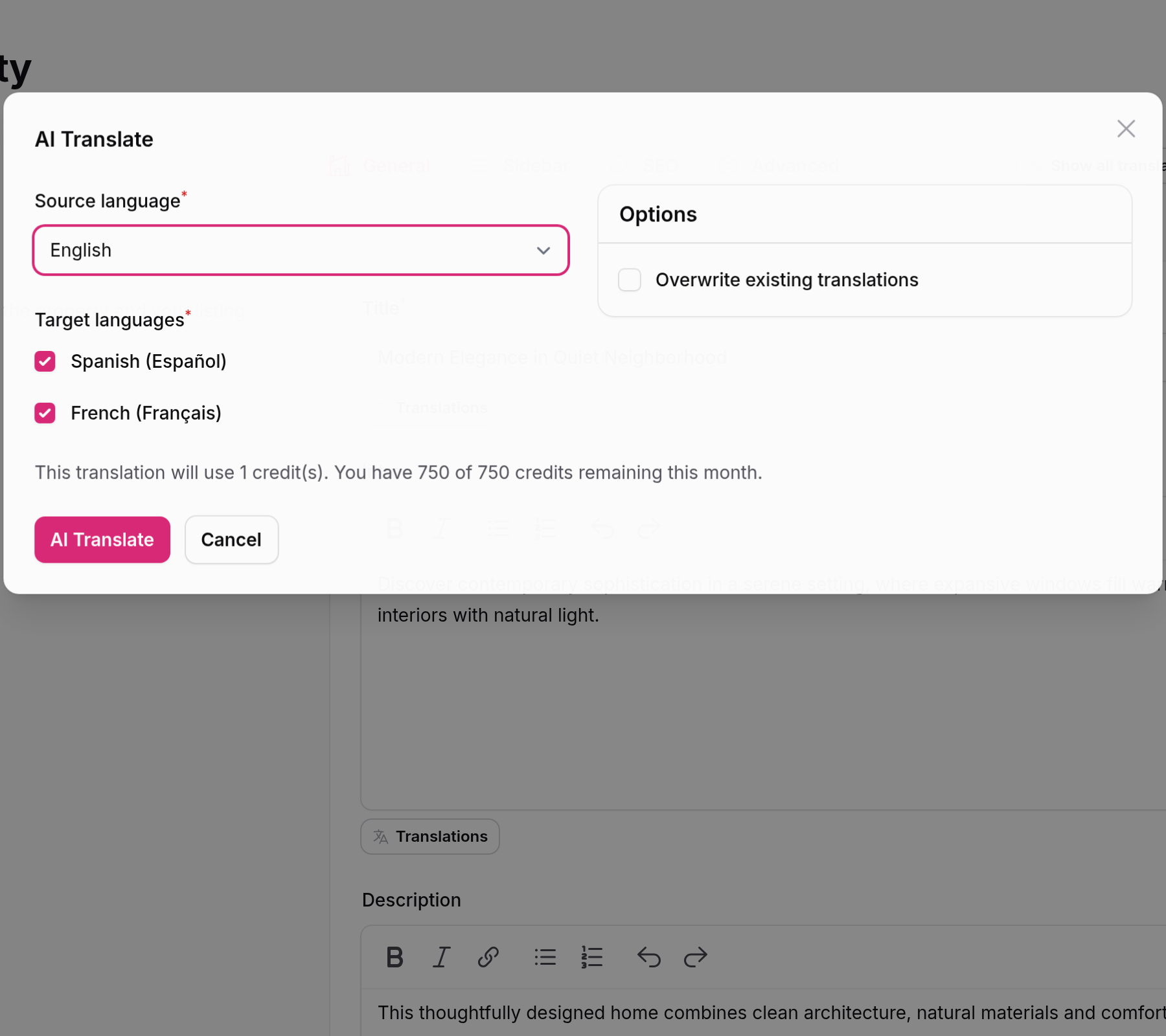
AI Translate fills the form but does not save the property for you. This gives you an opportunity to review every translation before it is published.
How translation credits are calculated
Your monthly translation allowance depends on your price plan:
| Plan | Translation credits per month |
|---|---|
| Free | 3 |
| Starter | 25 |
| Starter Plus | 75 |
| Growth | 250 |
| Tycoon | 750 |
One credit covers up to 1,000 source characters translated into one target language. Residenda counts the source text that still needs translation for every selected target language and rounds the total up to the next credit, with a minimum of one credit per translation action.
For example, translating a listing containing 4,800 characters into two languages counts as 9,600 billable characters and uses 10 credits. The exact cost therefore depends on the amount of text, the number of target languages, and whether you choose to overwrite existing translations. Residenda always shows the estimate and your remaining monthly balance before you start.
6. Check every language before publishing
Before making a Wix language visible:
- switch to it using the Language Menu on your Wix site;
- check both the listings overview and an individual property page;
- review custom field labels and option labels;
- check the property's title, description, call-to-action, and SEO content;
- verify the layout with longer translated text and on mobile;
- save your Residenda changes and publish your Wix site.
Translations do not stay synchronized automatically after you edit the source text. When a listing changes, update its other language versions manually or run AI Translate again. Only select Overwrite existing translations when replacing reviewed translations is intentional.